
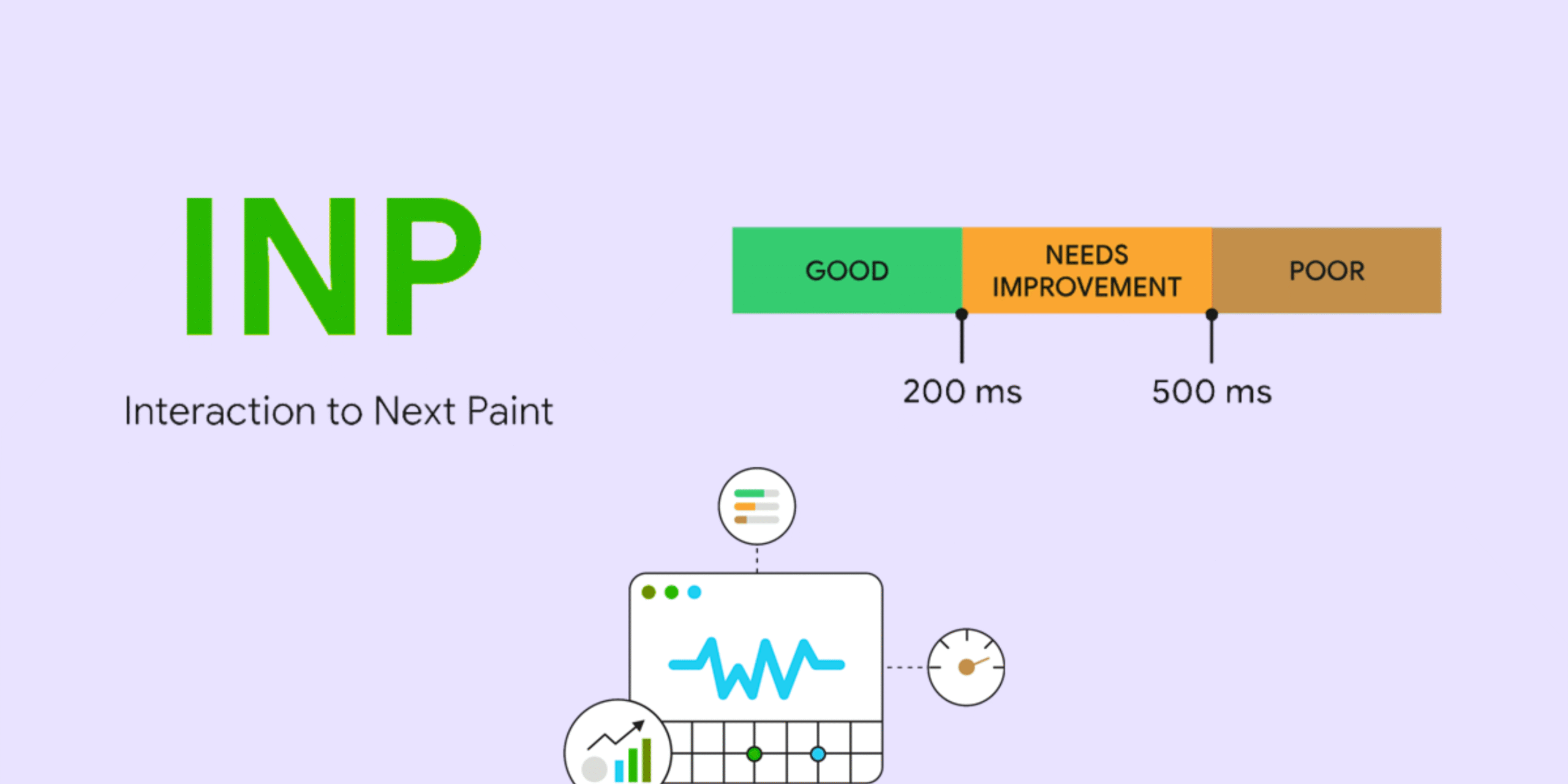
INP (Interaction to Next Paint) measures how quickly your website responds when someone clicks, taps, or types. If your page feels slow, delayed, or “laggy,” your INP score will be poor – and that hurts user experience and rankings. You can improve INP by reducing JavaScript bloat, using lightweight themes, optimizing images, and cleaning up unnecessary scripts.
Why INP Matters More Than You Think
Have you ever clicked a button on a website and nothing happened for a moment?
Or tapped on a mobile menu and felt a slight delay?
That tiny pause – even if it’s just a fraction of a second – is what INP measures.
And users REALLY notice it.
Google wants websites to feel smooth, fast, and responsive.
Not just fast in loading – but fast in reacting.
That’s why INP has become one of the most important metrics to understand.
The good news? Fixing INP is a lot easier than most people think.
Let’s break it down in human language.
1. What INP Actually Is (Explained Simply)
INP stands for:
Interaction to Next Paint
It measures how long it takes for a page to respond after a user interacts.
Examples of interactions:
- clicking a button
- tapping a menu
- typing into a form
- selecting an option
- clicking a tab
- opening a dropdown
If your page responds quickly, users feel the smoothness.
If it lags even slightly, users feel it – and Google knows it.
INP is basically a “How fast does your site react?” test.
2. Why INP Matters for SEO
Here’s the truth:
A slow INP doesn’t just annoy visitors –
it affects your rankings.
Google uses INP as a signal because users hate:
- double-clicking
- waiting for menus
- unresponsive buttons
- delayed form inputs
- slow tabs
Even if your website loads fast initially, a slow interaction ruins the overall experience.
So improving INP improves:
- engagement
- conversions
- bounce rate
- ranking potential
Google wants websites that feel alive, not sluggish.
3. How to Know If Your INP Is Good or Bad
You can check INP using:
- PageSpeed Insights
- Search Console → Core Web Vitals
- Lighthouse
- Web Vitals extension
A good INP is:
- Under 200 ms (great)
- 200–500 ms (needs improvement)
- Above 500 ms (poor)
The lower the better.
4. Why INP Gets Slow (Real Reasons People Don’t Realize)
Most people think slow INP means “my hosting is bad.”
Not really.
INP problems usually come from your page elements, not your server.
Let’s look at the most common causes.
Reason 1: Too Much JavaScript (JS Bloat)
Every script has to run before the browser responds.
If your website uses:
- heavy page builders
- animations
- tracking tools
- popups
- sliders
- unnecessary plugins
Your JS might delay interactions.
Reason 2: Render-blocking scripts
Some scripts pause everything until they finish loading.
This often happens in:
- themes
- ads
- analytics tools
- cookie consent banners
If these run at the wrong time, INP goes up.
Reason 3: Slow mobile performance
Most websites are fine on desktop but lag on mobile because:
- mobile CPUs are weaker
- more JS = more lag
- large images
- unoptimized layouts
INP problems usually start on mobile.
Reason 4: Heavy page builders
Tools like:
- Elementor
- Divi
- WPBakery
- Oxygen
- Bricks
…create a lot of code behind the scenes.
More code → more work → slower interactions.
Reason 5: Recalculation of styles
If your CSS forces the browser to repaint or re-layout too often, INP suffers.
Example:
- big layout shifts
- animations on scroll
- sticky headers
- dynamic elements
5. How to Fix INP (Simple, Practical Steps)
Let’s get to the part that actually helps: fixing it.
Here’s the step-by-step process I recommend – the same one I use on client sites.
Step 1: Remove Unnecessary Plugins
Ask yourself honestly:
- Do I really need this plugin?
- Is it adding scripts I don’t even use?
Every plugin removed = INP improvement.
Step 2: Use a Lightweight Theme
Themes impact INP massively.
Fast themes include:
- Astra
- GeneratePress
- Kadence
- Block-based Gutenberg themes
Avoid themes with preloaded sliders, animations, or builders.
Step 3: Delay Third-Party Scripts
Examples of scripts to delay:
- Google Analytics
- Facebook Pixel
- Hotjar
- Chat widgets
- Popup tools
- YouTube embeds
You can delay them using plugins or manual script adjustments.
This removes interaction delay during initial load.
Step 4: Optimize JavaScript Execution
If you’re using WordPress, plugins like:
- WP Rocket (delay JS execution)
- Perfmatters (disable unused scripts)
- Asset Cleanup Pro (selective loading)
can significantly fix INP issues.
Even small adjustments help a lot.
Step 5: Reduce Layout Shifts
CLS (layout stability) impacts INP too.
Fix:
- image dimensions
- ad placeholders
- shifting banners
- moving buttons
- dynamic text resizing
If your page stops jumping around, interactions respond faster.
Step 6: Improve Mobile Responsiveness
Test your page on:
A cheap Android phone
Slow 3G or 4G network
Touch-based interactions
If your site lags on simple hardware – your INP score will reflect it.
Optimize:
- images
- JS
- CSS
- unnecessary animations
Step 7: Move heavy elements below the fold
Things like:
- sliders
- videos
- carousels
- social feed widgets
should NOT load at the top.
Keep your above-fold section clean and fast.
Step 8: Use browser-native features
Instead of JS sliders → use CSS sliders.
Instead of JS animations → use CSS transitions.
Less JS = faster reactions.
6. Real Example: How I Improved INP on a Client Site
A client came to me saying:
“My site loads fast, but clicking anything feels slow.”
Their INP was around 450 ms – not terrible, but not good.
Here’s what I did:
- Disabled 7 unnecessary plugins
- Delayed analytics scripts
- Reduced their above-fold image size
- Turned off Elementor animations
- Enabled minimal CSS loading
- Disabled unused WooCommerce scripts
After these changes?
INP dropped from 450 ms → 140 ms.
Users could feel the difference immediately.
Sometimes the fixes are simple – you just need to know what to adjust.
7. INP Optimization Checklist (Human-friendly)
Before publishing or updating any page, ask:
✔ Does the page react quickly when tapped or clicked?
✔ ️ Are there unnecessary scripts loading early?
✔ Is any plugin slowing things down?
✔ Is the theme lightweight?
✔ Is JS minimized and delayed?
✔ Are images optimized?
✔ Is the site smooth on mobile?
✔ Are layout shifts minimized?
If you check off most of these, your INP will be excellent.
Conclusion: INP Is About Real User Experience, Not Just Scores
You don’t need to obsess over numbers.
You just need to make your website feel smooth and responsive.
Remember:
- A fast click feels better than a fast load
Users don’t care if your page “loads in 0.8 seconds” if the first click takes a full second to respond.
Fix INP, and everything improves:
- user experience
- conversions
- engagement
- rankings
A responsive website keeps people happy – and Google loves that.